Resource Management
Free up Disk Space via Docker CLI
- run
docker system dffor getting an overview of the disk usage by Docker images and volumes. (The--verboseparameter will print the usage per volume.) - The easiest way is deleting all images and volumes which are not in used by any running container via
docker image prune --allanddocker volume prune- Double check if the container is running in order to avoid deleting data volumes by accident.
- If you want to keep volumes from stopped or deleted containers you can use
docker volume rmanddocker image rmfor deleting volumes and images individually or using filtersdocker volume prune --filter "label!=image_name".
Tip
Additional commands for clean-up tasks can be found here: https://linuxize.com/post/how-to-remove-docker-images-containers-volumes-and-networks/
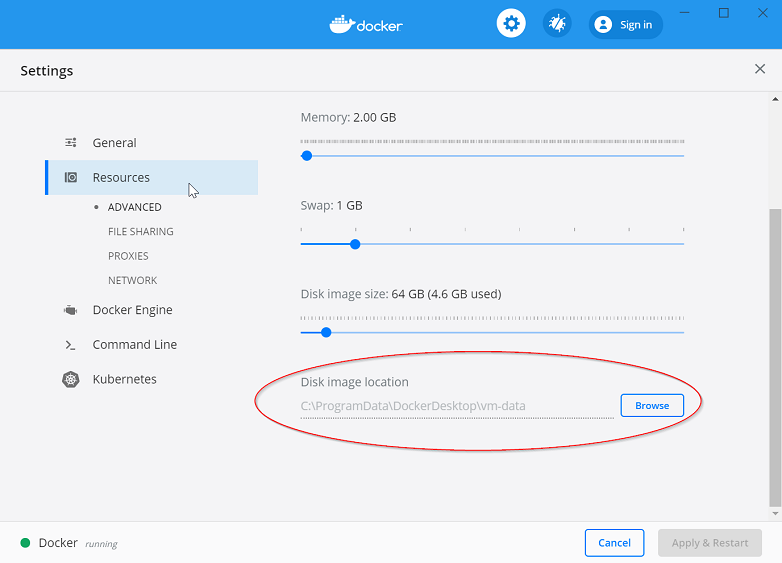
Move Docker VM Disk Image to another Location
- Go to the Docker Desktop Settings - Advanced tab
- Change the Disk Image Location in the input field (highlighted below):
Troubleshooting
Docker WSL 2 RAM limitation
It can happen that Docker with WSL 2 consumes the complete memory of the system, which may lead to instability and/or crashes.
To limit Docker to use only certain amount of memory (RAM), copy the wslconfig file from attachments to the desired computer. Define the limit in GB.
[wsl2]
memory=10GB
The location should be the root of the user, e.g.: C:/Users/Three10